For me, the biggest motivation is as an SSL termination point. With LetsEncrypt offering free certificates, SSL is a no-brainer, even for weekend projects. It sucks setting it up over and over and over again (even though it’s WAY easier than a couple years ago). I have one domain that I use as a staging area while I’m playing around with various ideas. Rather than set up SSL certificates for the various servers running on that machine, nginx is the SSL termination point which then proxies the requests.
Additionally, nginx is a super fast and simple static file server. If you’re just messing around with this week’s SPA framework, you don’t need an application server at all. This means most of your front end can be delivered as fast as possible, and fast is usually a good thing.
How to use it
First and foremost, there’s a great DigitalOcean tutorial here about deploying NodeJS servers.
One of the common use cases I find myself in is the following:
I have a client that I want served (HTML, JavaScript, CSS etc)
I have a server that provides an API, usually exclusively intended for the client
I don’t really want the client and the server to be directly aware of one-another
With that in mind, for the hostname example.ca I would create /etc/nginx/sites-available/example.ca with something like the following content:
This file contains hidden or bidirectional Unicode text that may be interpreted or compiled differently than what appears below. To review, open the file in an editor that reveals hidden Unicode characters. Learn more about bidirectional Unicode characters
For the most part, I have no idea. I imagine I copy/pasted it off a StackOverflow answer at some point. I’ll look it up when I have time.
nginx will be listening on port 80, and if someone comes knocking at the root path / it will try and serve up the client files that live in /home/toby/client (favicon, HTML, css, JavaScript etc).
If someone makes a request prefixed by /api/, the request is rewritten to strip off that prefix (so https://example.ca/api/endpoint/test would turn into http://127.0.0.1:3000/endpoint/test) and proxied off to an Express server that is running on port 3000 (in this example).
I think nginx is the original form [citation needed], Nginx Inc. is the name of the company that backs it, and NGINX is the logo and modern “marketing” name. From that perspective, the software is likely most correctly referred to as NGINX, but practically speaking my impression is most people use nginx. Probably could be clearer…
For weekend projects, I generally want to get up and running as quick as possible. One constant for almost all web applications is authentication, authorization, and me not really wanting to deal with either. It always seems like a pain! While trying t02o still stay in the realm of learning new things, I figured I’d give PostGraphQL a shot. Sticking with technologies I’ve previously used, I’ll use PostGraphQL as middleware with Express, and run PostgreSQL in Docker.
Note: This is essentially a reimplementation of the wonderful PostGraphQL tutorial here.
All code is available here.
Setting up Docker
First things first, I’ll need an actual database server. My go to for this is Docker, as it’s easy to manage many instances, easy to scrap and start fresh, and easy to validate my provisioning works as expected. With Docker installed, it’s a simple
Before getting into tables and functions, I’ll need a database instance on the server. Doing this in psql is my go to.
CREATE DATABASE auth;
Then connect to it
\c auth
I’m going to be encrypting passwords, so I’ll add the pgcrypto extension. I’m also going to be dealing with email addresses, and for sanity’s sake I’m going to treat the entire address as case insensitive. I know that’s not technically accurate, but it’s a usability nightmare otherwise. To do so, I’ll enable the citext extension.
CREATE EXTENSION IF NOT EXISTS "pgcrypto";
CREATE EXTENSION IF NOT EXISTS "citext";
Both PostGraphql and PostgREST use schemas (or schemata if you’re that kind of person) to scope entities. There’s some good reading about it here. The simplest setup is to have one public schema, which will turn into the API, and one private schema, which will be kept “secret”.
Following PostgREST some more, there are 3 main roles (when using row level security) – unauthenticated/anonymous, authenticated, and the role used by the actual framework itself (I’ve called it auth_postgraphql). The roles used by the framework should be able to access everything from both other roles.
CREATE ROLE auth_postgraphql LOGIN PASSWORD 'password';

CREATE ROLE auth_anonymous;
GRANT auth_anonymous TO auth_postgraphql;

CREATE ROLE auth_authenticated;
GRANT auth_authenticated TO auth_postgraphql;
Schema design
Tables
Now the actual schema. For this seed project, I’m going to keep it about as minimal as possible while still allowing for authorization.
Users have firstnames, last names, and unique IDs, privately they also have an email address (this is their username) and a password.
Creating these two tables in their respective schemas:
CREATE TABLE auth_public.user (
  id              serial primary key,
  first_name      text not null check (char_length(first_name) < 80),
  last_name       text check (char_length(last_name) < 80),
  created_at      timestamp default now()
);
CREATE TABLE auth_private.user_account (
  user_id         integer primary key references auth_public.user(id) on delete cascade,
  email           citext not null unique,
  password_hash   text not null
);
Authorization
PostGraphQL makes authorization pretty straightforward by delegating it to the database. PostgreSQL has Row-Level Security (as of 9.5), which means a naive implementation of authorization is to restrict users by only letting them modify their own rows (where their id matches the id of the row).
Enable RLS on the user table:
ALTER TABLE auth_public.user ENABLE ROW LEVEL SECURITY;
And set policies so users can interact with their own rows. Everyone (unauthenticated included) will be able to query the table, but only authenticated users will be able to update or delete entries, and only their own.
CREATE POLICY select_user ON auth_public.user FOR SELECT
  using(true);

CREATE POLICY update_user ON auth_public.user FOR UPDATE TO auth_authenticated
  using (id = current_setting('jwt.claims.user_id')::integer);

CREATE POLICY delete_user ON auth_public.user FOR DELETE TO auth_authenticated
  using (id = current_setting('jwt.claims.user_id')::integer);
JWT for authentication
Before going any further, I have enough information to be able to create the type I’ll be using for my JWT. Keeping this simple, it will have role for authentication and user_id for authorization.
CREATE TYPE auth_public.jwt as (
  role    text,
  user_id integer
);
Functions
I’ll create 3 functions:
register a new user
authenticate that user with a provided email and password
show who the current user is
CREATE FUNCTION auth_public.register_user(
  first_name  text,
  last_name   text,
  email       text,
  password    text
) RETURNS auth_public.user AS $$
DECLARE
  new_user auth_public.user;
BEGIN
  INSERT INTO auth_public.user (first_name, last_name) values
    (first_name, last_name)
    returning * INTO new_user;

  INSERT INTO auth_private.user_account (user_id, email, password_hash) values
    (new_user.id, email, crypt(password, gen_salt('bf')));

  return new_user;
END;
$$ language plpgsql strict security definer;
CREATE FUNCTION auth_public.authenticate (
  email text,
  password text
) returns auth_public.jwt as $$
DECLARE
  account auth_private.user_account;
BEGIN
  SELECT a.* INTO account
  FROM auth_private.user_account as a
  WHERE a.email = $1;

  if account.password_hash = crypt(password, account.password_hash) then
    return ('auth_authenticated', account.user_id)::auth_public.jwt;
  else
    return null;
  end if;
END;
$$ language plpgsql strict security definer;
CREATE FUNCTION auth_public.current_user() RETURNS auth_public.user AS $$
SELECT *
FROM auth_public.user
WHERE id = current_setting('jwt.claims.user_id')::integer
$$ language sql stable;
Permissions
Everything I need for this seed project is defined now, so time to sort out the permissions for the various roles.
GRANT USAGE ON SCHEMA auth_public TO auth_anonymous, auth_authenticated;
GRANT SELECT ON TABLE auth_public.user TO auth_anonymous, auth_authenticated;
GRANT UPDATE, DELETE ON TABLE auth_public.user TO auth_authenticated;
GRANT EXECUTE ON FUNCTION auth_public.authenticate(text, text) TO auth_anonymous, auth_authenticated;
GRANT EXECUTE ON FUNCTION auth_public.register_user(text, text, text, text) TO auth_anonymous;
GRANT EXECUTE ON FUNCTION auth_public.current_user() TO auth_anonymous, auth_authenticated;
Set up server
Create a regular ol’ Express server with dotenv to ensure our environment specific details don’t leak out.
$ yarn init
yarn init v0.24.6
question name (auth-server):
question version (1.0.0):
question description:
question entry point (index.js):
question repository url:
question author:
question license (MIT):
success Saved package.json
Done in 2.82s.
$ yarn add express dotenv
yarn add v0.24.6
info No lockfile found.
[1/4] Resolving packages...
[2/4] Fetching packages...
[3/4] Linking dependencies...
[4/4] Building fresh packages...
success Saved lockfile.
success Saved 43 new dependencies.
... (snip all the dependencies) ...
$ touch index.js .env
Make sure you’ve added PORT to your .env file and set it appropriately – e.g. PORT=3000
Integrate PostGraphQL middleware
This part is arguably slightly more interesting, but still just using configuration to wire things together:
This file contains hidden or bidirectional Unicode text that may be interpreted or compiled differently than what appears below. To review, open the file in an editor that reveals hidden Unicode characters. Learn more about bidirectional Unicode characters
Before getting any application level concerns involved, I like to test everything works on the database level. I’ll register a user (using the function), make sure it populates both the public and private table, intentionally fail authenticating against it, attempt to successfully athenticate against it, then finally clean up the user.
Xplornet, my ISP, offers 50 MB of free hosting. More interestingly, it’s a public hostname that I don’t have to worry about setting up or maintaining! While mucking around with JavaScript front end frameworks, I figured that’d be a neat place to drop my work. Right off the bat I was a little bit wary of the offering, as 50 MB is a weirdly tiny amount of space, which likely means Xplornet has no idea what they’re doing when it comes to web hosting. Upon signing up and receiving my concerningly short password in plaintext, which I also don’t seem to be able to change, I figured I was bang on with my suspicions. Nothing private going on that server, that’s for sure. Regardless, I figured I’d give it a try and see what I could do with it.
It looks like the only way to get files to the server is via FTP (of course no SFTP). Xplornet gave me an account with access to a less than ideal front end for loading up files, but that is all GUI driven and generally painful. I want to deploy my front end automatically, so time to figure out a little FTP.
FTP in JavaScript
I’m presently trying to develop my JavaScript skills, so I figured I’d start writing up a deployment script in JS. So far as I can tell, the FTP ecosystem is pretty sparse in the JavaScript world. I landed on jsftp as the library for backing the interaction, but it’s a bit rough around the edges. I figured I’d keep the script simple: delete everything in /public and replace it with the output of my build. I immediately tripped over FTP… I don’t really know anything about it, beyond using clients to move files around every now and then, but it appears as though deleting a non-empty file is difficult or maybe impossible?
For lack of rm -rf
When I can’t delete non-empty directories, the only other solution I can think of is to walk the directory and delete everything from the bottom up. So that’s what I decided to do! Note that this is literally the first iteration that managed to delete all the files in one shot, so hold off on the judgement… If I have spare time I might bundle it up into a NPM module, we’ll see how it goes.
This file contains hidden or bidirectional Unicode text that may be interpreted or compiled differently than what appears below. To review, open the file in an editor that reveals hidden Unicode characters. Learn more about bidirectional Unicode characters
Everyone wants your data all the time. Personal privacy is being eroded, as users are being tracked, traffic is being shaped, and an astonishing amount of “metadata” is being collected and correlated. In the midst of all the scary privacy news in the past few years, I figured it was becoming indefensible to be without a VPN. The price for most of the products in the market is extremely reasonable and without even worrying about nation states, it keeps a significant portion of my browsing information out of the hands of my ISP. Whether the ISP is looking at traffic for traffic shaping concerns, selling “anonymized” data, or policing content infringement, I can’t imagine there being a single upside to exposing my data. With that said, I signed up for NordVPN (referral link). It was well reviewed, and a reasonable price – 3$/month on a 2 year subscription.
Raspbian
The Raspberry Pi runs Raspbian a version of Debian (which is also what Ubuntu is based off). I find this extremely handy, because it means there’s a wealth of information available. Unfortunately, I was unable to find precisely the guide I was looking for, hence this. Debian (and therefore Raspbian) uses systemd to manage its services, which is ultimately where this is headed.
Set up
There are a couple pretty straightforward pieces here:
How are we going to know if this worked? We’ll want to validate that our public IP address has changed. Note that this is different from your private LAN IP, which usually looks something like 192.168.1.23. I think one of the easiest ways to check the computer’s current public IP is to do something like (obviously executed on the Pi itself):
$ curl ipinfo.io/ip
37.48.80.202
Write this down somewhere, and we’ll compare later.
1. Install OpenVPN
This one is super easy:
$ sudo apt install openvpn
2. Set up NordVPN
Almost as easy. You can look at NordVPN’s instructions here, but this really pollutes your /etc/openvpn folder, which I’ve found to be an annoyance. I made a folder to store them.
$ cd /etc/openvpn
$ sudo mkdir nordvpn
$ cd nordvpn
$ sudo wget https://nordvpn.com/api/files/zip --2017-05-25 03:37:32-- https://nordvpn.com/api/files/zip Resolving nordvpn.com (nordvpn.com)... 104.20.17.34, 104.20.16.34 Connecting to nordvpn.com (nordvpn.com)|104.20.17.34|:443... connected. HTTP request sent, awaiting response... 200 OK Length: 4113709 (3.9M) [application/octet-stream] Saving to: ‘/etc/openvpn/nordvpn/zip’ /etc/openvpn/nordvpn/zip 100%[=======================================>] 3.92M 53.5KB/s in 56s 2017-05-25 03:38:31 (71.8 KB/s) - ‘/etc/openvpn/nordvpn/zip’ saved [4113709/4113709] $ sudo unzip -q zip
At this point your zip /etc/openvpn/nordvpn folder should be chock full of (~2048?) ovpn files for the various NordVPN servers. Time to choose one! Which one is totally dependent on your goals – latency, speed, privacy, security etc. Picking one arbitrarily, copy it over:
$ cd /etc/openvpn
$ sudo cp nordvpn/sk2.nordvpn.com.tcp443.ovpn .
$ ls
sk2.nordvpn.com.tcp443.ovpn nordvpn update-resolv-conf
As a checkpoint, to make sure everything is working so far, you can starting the VPN client up (you’ll need your NordVPN credentials here). Try running:
$ sudo openvpn sk2.nordvpn.com.tcp443.ovpn
Thu May 25 03:55:37 2017 OpenVPN 2.3.4 arm-unknown-linux-gnueabihf [SSL (OpenSSL)] [LZO] [EPOLL] [PKCS11] [MH] [IPv6] built on Jan 23 2016
Thu May 25 03:55:37 2017 library versions: OpenSSL 1.0.1t 3 May 2016, LZO 2.08
Enter Auth Username: *********************
Enter Auth Password: ********************
Thu May 25 03:56:23 2017 WARNING: --ping should normally be used with --ping-restart or --ping-exit
Thu May 25 03:56:23 2017 NOTE: --fast-io is disabled since we are not using UDP
... <a bunch of logging messages> ...
Thu May 25 03:56:30 2017 Initialization Sequence Completed
It should be self explanatory, but if you see:
Thu May 25 03:57:38 2017 AUTH: Received control message: AUTH_FAILED
Thu May 25 03:57:38 2017 SIGTERM[soft,auth-failure] received, process exitin
You’ve presumably made a mistake with your credentials, or your account isn’t active.
3. Set up your NordVPN authentication
Obviously it sucks a little to have to type in your username and password every time you want to start your VPN connection. If the server is private it’s nice to bake the authentication credentials right in. Disclaimer: there’s probably something objectionable about this, feel free to comment if there’s a better way. You can use your favorite editor here, so long as it ends up the same:
$ sudo nano .secrets
This is the format – username followed by a newline followed by password. If you haven’t used nano before, hit Ctrl + x to exit, then y to confirm you want to keep your changes, then finally Enter to actually exit.
Now open up your configuration file: sudo nano sk2.nordvpn.com.tcp443.ovpn
And find the line that says auth-user-pass. Append the absolute path of the .secrets file you just created to this line. It’ll end up looking something like: auth-user-pass /etc/openvpn/.secrets
Then save and exit. This makes it so OpenVPN automatically looks in .secrets when it goes to authenticate with the NordVPN server.
4. Make it work: .ovpn != .conf
This one is extremely subtle if it’s you’re not really sure what you’re doing – which is likely if you’re reading this. OpenVPN automatically sets up a daemon for every .conf file it finds in /etc/openvpn – note that I have said .conf. We have .ovpn files. The last step here is to “convert” the file. All that means in this context is renaming it…
Hopefully everything has come together now. I think the most convincing way to try this out is with a good ol’ sudo reboot, wait for the unit to come back up, followed by $ curl ipinfo.io/ip – you should now get a different IP address from what you had in step 0.
I use Signal Messenger and quite like it. It’s definitely quirky, but I welcome a technology that generally works and secures my communications – it seems like it’s never a bad idea for private messages to be private. After about a year of living predominantly in a Linux VM on a Windows host, the recent changes to embed advertisements in the Windows file explorer pushed me over the edge and I decided to finally go native Linux. I’ve used Ubuntu most extensively, so I jumped on board.
The default in Ubuntu is Firefox, and while I’ve used it off and on through the years (I have virtually 0 browser loyalty), one of the tripping points has been that Signal runs in Chrome on the desktop. That kind of sucks. If all I want to do is run Signal, I find the Chrome process gobbles RAM and CPU completely disproportionate with the amount of work Signal is doing. Looking for non-Chrome installations of Signal lead me to this Signal Desktop ticket which had a handy comment here.
I followed the first few steps (I had already installed Node with NVM): $ git clone https://github.com/WhisperSystems/Signal-Desktop.git
$ cd Signal-Desktop/
$ npm install
$ node_modules/grunt-cli/bin/grunt
The grunt task didn’t work, as apparently I needed Ruby and Sass. Easy enough to install Ruby with RVM, followed by gem install sass. That put me on track to finish the grunt task – executing $ node_modules/grunt-cli/bin/grunt the second time was successful. I continued along with the rest of the steps, although NW.js is now at a stable version of 21.3 so I used the latest SDK instead of the listed 0.14.4.
Continued following the instructions, and what do you know – Signal starts! At first it had trouble drawing and generally blew up with a whole bunch of this:
[24887:24887:0323/205532.784593:ERROR:sandbox_linux.cc(345)] InitializeSandbox() called with multiple threads in process gpu-process.

[24887:24887:0323/205532.785373:ERROR:child_thread_impl.cc(762)] Request for unknown Channel-associated interface: ui::mojom::GpuMain

[24872:24893:0323/205532.841128:ERROR:render_media_log.cc(30)] MediaEvent: MEDIA_ERROR_LOG_ENTRY {"error":"FFmpegDemuxer: open context failed"}

[24872:24872:0323/205532.841234:ERROR:render_media_log.cc(30)] MediaEvent: PIPELINE_ERROR demuxer: could not open

[24887:24887:0323/205533.083205:ERROR:gles2_cmd_decoder_autogen.h(143)] [.DisplayCompositor-0x562e3b3d6940]GL ERROR :GL_INVALID_ENUM : glBindTexture: target was GL_FALSE

[24887:24887:0323/205533.083231:ERROR:gles2_cmd_decoder_autogen.h(2916)] [.DisplayCompositor-0x562e3b3d6940]GL ERROR :GL_INVALID_ENUM : glTexParameteri: target was GL_FALSE

[24887:24887:0323/205533.083245:ERROR:gles2_cmd_decoder_autogen.h(2916)] [.DisplayCompositor-0x562e3b3d6940]GL ERROR :GL_INVALID_ENUM : glTexParameteri: target was GL_FALSE

[24887:24887:0323/205533.089440:ERROR:gles2_cmd_decoder.cc(9573)] [.DisplayCompositor-0x562e3b3d6940]RENDER WARNING: there is no texture bound to the unit 0

...

repeated a whack load of times

...
but I stopped it and started again and there were far fewer errors! “Did you try turning it off and back on again?”
[24972:24972:0323/205724.338314:ERROR:sandbox_linux.cc(345)] InitializeSandbox() called with multiple threads in process gpu-process.

[24972:24972:0323/205724.339183:ERROR:child_thread_impl.cc(762)] Request for unknown Channel-associated interface: ui::mojom::GpuMain

[24974:24992:0323/205724.657233:ERROR:render_media_log.cc(30)] MediaEvent: MEDIA_ERROR_LOG_ENTRY {"error":"FFmpegDemuxer: open context failed"}

[24974:24974:0323/205724.657392:ERROR:render_media_log.cc(30)] MediaEvent: PIPELINE_ERROR demuxer: could not open

[24974:24979:0323/205959.628198:ERROR:broker_posix.cc(102)] Error sending sync broker message: Broken pipe
It appears as though (perhaps the way it’s invoked?) it doesn’t stay linked if you exit, so you’d have to link it every time you booted Signal, but other than that… it actually works. I’m not sure why I’m so surprised, but considering a non-Chrome desktop client is not supported by Signal, this is about the most successful display of “hey, try this code and see what happens” I can recall. Usually somebody’s blog post about how for one brief instant all the versions of whatever they’re integrating all aligned and they got something “working” generally means that it’s insanely brittle and about to explode. Looks like not this time though, so kudos to Signal, NW.js and Tim Taubert!
My goal is to provide a seed project for TypeScript development of a server. The context I’m coming from is using one of the ever-multiplying front end frameworks (e.g. Angular) to produce the client and wanting a technology to deliver the client and provide APIs for the client to interact with. The intention is to base the seed project off the output of the Express Generator, but with TypeScript instead of vanilla JavaScript.
The Express Generator provides a nice scaffold, but it doesn’t produce many files. It doesn’t have an option for avoiding any view templating languages, which is unfortunate, but easy enough to work around. If we ignore the directories and the view templating engines, the generator only produces 6 files.
# Excluding directories and the `.ejs` files that are generated$ express -v ejs
create : ./package.json
create : ./app.js
create : ./routes/index.js
create : ./routes/users.js
create : ./bin/www
create : ./public/stylesheets/style.css
Great place to start then!
Things that are not impacted by TypeScript
public/stylesheets/style.css
There’s nothing to change here. The style.css can stay exactly the same as in the generator.
Avoiding a template engine means we’re going to have to serve up something different. A static file will work fine, so we’ll swap out index.ejs for the equivalent static HTML file and throw it in the public folder – `public/index.html’.
<html><head><title>Express</title><linkrel="stylesheet"href="/stylesheets/style.css"></head><body><h1>Express</h1><p>Welcome to Express</p></body></html>
views/error.ejs –> public/error.html
Same goes for the Error view, but unfortunately we lose some functionality here – as the file is static we can’t dynamically add the error. Works for now! public/error.html:
<html><head></head><body><h1>Don't know the error message</h1><h2>Don't know the status code</h2><pre>Error: Being static, we can't dynamically generate this content.</pre></body></html>
Things we need to add
/models/http_error.ts
This is unfortunate, but in the generated app.js there are these two lines when catching 404 errors:
varerr=newError('Not Found');err.status=404;
Error doesn’t have a status, so this will blow up for us as soon as we add some typing information. We can add a wrapper in its place models/http_error.ts that we’ll use when we look at converting the app.js file. We could also get rid of the status entirely, as we’re not rendering it anymore.
This is where we get into the mess of TypeScript. First of all, we can use everything that the generator produced (except of course we’ll get rid of the ejs dependency):
"module" can be: None, CommonJS, AMD, System, UMD, ES6, or ES2015
"target" can be: ES3, ES5, ES6/ES2015, ES2016, ES2017 or ESNext
We’re already committing to deal with the compilation step of TypeScript to JavaScript, so it doesn’t seem like too much of a stretch to also try out Babel. So we’re moving from writing JavaScript then running JavaScript to writing TypeScript that will transpile to an ES6 target, then using Babel to transpile it to vanilla ES5 JavaScript that we’ll be able to actually run. A process for sure, but hopefully worth it. We’ll modify the tsconfig.json to reconcile the TypeScript portion of it:
$ yarn add babel-cli -D
yarn add v0.20.3
[1/4] Resolving packages...
[2/4] Fetching packages...
warning fsevents@1.0.17: The platform "linux" is incompatible with this module.
info "fsevents@1.0.17" is an optional dependency and failed compatibility check. Excluding it from installation.
[3/4] Linking dependencies...
[4/4] Building fresh packages...
success Saved lockfile.
success Saved 115 new dependencies.
... < snip > ...
Done in 37.38s.
$ yarn add babel-preset-es2016 -D
yarn add v0.20.3
[1/4] Resolving packages...
[2/4] Fetching packages...
warning fsevents@1.0.17: The platform "linux" is incompatible with this module.
info "fsevents@1.0.17" is an optional dependency and failed compatibility check. Excluding it from installation.
[3/4] Linking dependencies...
[4/4] Building fresh packages...
success Saved lockfile.
success Saved 7 new dependencies.
... < snip > ...
Done in 3.47s.
$ yarn add babel-preset-stage-2 -D
yarn add v0.20.3
[1/4] Resolving packages...
[2/4] Fetching packages...
warning fsevents@1.0.17: The platform "linux" is incompatible with this module.
info "fsevents@1.0.17" is an optional dependency and failed compatibility check. Excluding it from installation.
[3/4] Linking dependencies...
[4/4] Building fresh packages...
success Saved lockfile.
success Saved 20 new dependencies.
... < snip > ...
Done in 4.34s.
6. Add the Babel transpile step:
We can do this with Grunt or Gulp or whatever other dependency, but we can also do it with plain old JavaScript
"scripts":{"clean":"rm -r build && rm -r test","tsc":"node ./node_modules/.bin/tsc","babel":"node ./node_modules/.bin/babel build --out-dir test --source-maps","build":"yarn run clean && yarn run tsc && yarn run babel"}
routes/index.js
This stays pretty much the same as it is in the generator. The difference here is that the view engine has been swapped for a static file. Additionally, to make it easier to serve up the static file this makes use of global variable – the path to the root of the server.
Same story here, pretty much the same as it is in the generator.
importexpressfrom'express';varusers=express.Router();users.get('/',function(req,res,next){res.send('respond with a resource');});export{users};
app.js
This is a big one in terms of changing the structure. It quite naturally looks like it should be a class in the general vicinity of App. This is different than the structure of app.js, but it seems different in a positive way. There are a couple other changes here:
swapped out the view engine for static files, removing the view engine lines
added in the HttpError in place of the Error object
"use strict";importexpressfrom'express';importpathfrom'path';importfaviconfrom'serve-favicon';importloggerfrom'morgan';importcookieParserfrom'cookie-parser';importbodyParserfrom'body-parser';import{HttpError}from'./models/http_error'import{index}from'./routes/index';import{users}from'./routes/users';exportdefaultclassApp{publicapp:express.Application;constructor(){this.app=express();// uncomment after placing your favicon in /public//app.use(favicon(path.join(__dirname, 'public', 'favicon.ico')));this.app.use(logger('dev'));this.app.use(bodyParser.json());this.app.use(bodyParser.urlencoded({extended:false}));this.app.use(cookieParser());this.app.use(express.static(path.join(__dirname,'public')));this.app.use('/',index);this.app.use('/users',users);// catch 404 and forward to error handlerthis.app.use(function(req,res,next){varerr=newHttpError('Not Found',404);next(err);});// error handlerthis.app.use(function(err,req,res,next){// set locals, only providing error in developmentres.locals.message=err.message;res.locals.error=req.app.get('env')==='development'?err:{};// render the error pageres.status(err.status||500);res.sendFile('error.html',{root:(<any>global).appRoot+'/public/'});});}}
/bin/www
#!/usr/bin/env node
/**
* As this is the entrypoint for the application, set a global variable for
* the root path of the server. This makes it a little easier to serve static
* files as their path is relative to the root instead of the file that is
* trying to serve them.
*/varpath=require('path');(<any>global).appRoot=path.join(__dirname,'./..');/**
* Module dependencies.
*/importAppfrom'../app';importdebugfrom'debug';importhttpfrom'http';/**
* Instantiate the application as it's a class now
*/constapplication=newApp();/**
* Get port from environment and store in Express.
*/varport=normalizePort(process.env.PORT||'3000');application.app.set('port',port);/**
* Create HTTP server.
*/varserver=http.createServer(application.app);/**
* Listen on provided port, on all network interfaces.
*/server.listen(port);server.on('error',onError);server.on('listening',onListening);functionnormalizePort(val){varport=parseInt(val,10);if(isNaN(port)){// named pipereturnval;}if(port>=0){// port numberreturnport;}returnfalse;}/**
* Event listener for HTTP server "error" event.
*/functiononError(error){if(error.syscall!=='listen'){throwerror;}varbind=typeofport==='string'?'Pipe '+port:'Port '+port;// handle specific listen errors with friendly messagesswitch(error.code){case'EACCES':console.error(bind+' requires elevated privileges');process.exit(1);break;case'EADDRINUSE':console.error(bind+' is already in use');process.exit(1);break;default:throwerror;}}/**
* Event listener for HTTP server "listening" event.
*/functiononListening(){varaddr=server.address();varbind=typeofaddr==='string'?'pipe '+addr:'port '+addr.port;debug('Listening on '+bind);}
Check out another take on the subject here – what I read before starting. Also, remember you can find the code for this project here.
You can check their site, but they’re a nation-wide Internet service provider in Canada. They generally focus on rural areas and offer both satellite and fixed wireless products (previously 4G, but now LTE). If you have experience with satellite Internet, you’re likely aware it’s at just about the bottom of the list for desirable connections. Its typically expensive, has low bandwidth, restrictive data caps, and high latency. Contrast that with Xplornet’s fixed wireless offerings which historically have been expensive, have relatively low bandwidth, restrictive data caps, but acceptable latency! We jumped at the opportunity to upgrade from 4G to LTE – the pitch was “Up to1,2,3 25 Mbps down and 1 up with a 500GB data cap for 99$/month”. If you live in an urban area you may find that surprising, but that is in fact a pretty decent deal. We were paying about 10$/month less for 10/1 connection and a 100GB data cap. So we switched (eventually, after Xplornet’s labored roll out).
One static IP, please
A couple months after switching, I wanted to expose a small web server as part of a hobby project. I looked at the Xplornet website and found that they offer static IP addresses – see? They seem to have forgotten to mention that static IPs were not something they could offer with their LTE service, only with their now obsolete WiMAX. There was no amount of money (even the 10$/month was expensive enough…) which could purchase a static IP from Xplornet on their LTE equipment. So, how to host a server? The go to solution in situations like this is a dynamic DNS(DDNS) – for most purposes its functionally equivalent so long as the DNS is updated every time the IP address changes. I’ve personally used (and enjoyed) FreeDNS, but there are other providers like NoIP. There are yet other providers that are not free, but I don’t see a compelling reason to use them. So, problem solved, right? Update the DNS entries every time Xplornet issues a new IP address and we’re off to the races! Not a chance. Xplornet provides users with an IP address through network infrastructure that involves a double NAT.
What is a double NAT?
Network Address Translation. Is that helpful? Someone who actually knows about it can explain it better (e.g. here). Essentially, with finite IP addresses and an ever-growing number of devices, the number of devices that are directly accessible from the public Internet is a small subset of all public Internet connected devices. For many home Internet users, their ISP gives them a dynamically allocated IP address and that conventionally ends up associated with the user’s router. The router provides the means to translate addresses for incoming and outgoing packets – this is where you get your computers IP address (usually looks like 192.168.1.10). Machines on your local network can “see out” via the router, but public Internet users can only see so far as the router (wild generalizations happening here). This means that if you want to host a website or run a server that is accessible from anything other than your LAN, you need to work around the NAT that the router is offering you. Everyday users run into this with the concept of port forwarding for video games or other software products – the router sends traffic that shows up to a given port directly to the target computer.
The issue with what Xplornet does is that it has its own router that serves many users routers. One public IP address hits Xplornet’s router, is split into multiple private subnets (one layer of NAT), and those subnets are provided to end users who then use NAT (the second layer) to route to all the devices in their house. Generally, this doesn’t cause any issues and makes better use of the increasingly scarce IPv4 addresses, but if you actually want to have anything visible from the public Internet, it’s a nightmare. There’s no direct connection from the equipment that is in/around your house (including Xplornet’s antenna) to the public Internet. So without cooperation from Xplornet, there is no way to accomplish the same effect as a static IP address with similar methods.
Feel free to check out other people running into this problem (and far more people fundamentally misunderstanding it) over on the RedFlagDeals site.
What to do?
A double NAT means you cannot use a DDNS or port forwarding or any of the other common suggestions people have for resolving what they think the issue is. They address the single NAT problem, but do a whole lot of nothing for this situation. So what are the options?
Free
What I believe to be the easiest is a “local tunnel” solution. There are plenty out there, one of the more popular is ngrok. It has a free tier and as long as you don’t need multiple ports on a single domain (like I did), it gets you 4 tunnels and is actually super handy. Something as simple as:
ngrok http 80
Gets you:
ngrok by @inconshreveable

Session Status                online
Version                       2.1.18
Region                        United States (us)
Web Interface                 http://127.0.0.1:4040
Forwarding                    http://d75b33b2.ngrok.io -> localhost:80
Forwarding                    https://d75b33b2.ngrok.io -> localhost:80

Connections                   ttl     opn     rt1     rt5     p50     p90
                              0       0       0.00    0.00    0.00    0.00
Similarly, Pagekite is easy to get up and running. The difference there is the free tier of ngrok doesn’t expire, while Pagekite’s does.
Neither of these (so far as I know) offers any way to get many ports on the same domain (or subdomain). You can have many ports fed from a single machine, but they’re made accessible on separate subdomains. This part didn’t work for me.
As close as you can get to free
I think there are two workable options. One would be to set up a publicly accessible VPN server, the other is to set up a publicly accesible SSH server. All else held equal, I imagine the VPN server would be the best option, but I’ve never done that before. SSH servers are present by default on many Linux distributions, so most of the work is done.
With that said, my answer here is: reverse SSH tunnel. Cloud computing has driven the price of VPSs into the ground. Whether it be with DigitalOcean, AWS, or Linode (see comparison here), you can pick up a pretty beefy machine for 10$ per month of runtime. DigitalOcen even offers a 5$ tier, which is pretty astounding. With that taken into consideration, it’s cheaper (or nearly the same price) to get a cloud instance than it is to pay for something like ngrok or Pagekite. You need barely anything computing resource wise to run this kind of set up.
There are two pieces to this, I’ll refer to them as the “public computer” (cloud instance”) and the “private computer” (the one you’re wanting to expose).
Public computer
The public computer set up is pretty straightforward:
Already have, or sign up for a cloud instance with DigitalOcean, AWS, Linode or similar
Provision the machine with some kind of Linux (e.g. Ubuntu 16.04)
Know enough about securing a publicly accessible machine that you don’t need to be told how to (you were already exposing something to the internet, so presumably you have some idea). You can look at this guide for a quick intro.
SSH into it ssh user@cloud-instance-ip.totallyreal.com
Make sure it’s up to date – sudo apt update && sudo apt upgrade
Here’s the tricky part. It took me more than an hour to find out why I could only see the tunneled ports from the remote machine. Feel free to read up on the documentation. You have to open up your public machine so that the SSH tunnels are exposed to the world at large (hopefully not everybody, you have a firewall set up – right?). This is possible by modifying /etc/ssh/sshd_config – note, you’ll likely have a ssh_config as well, so pay attention to what you’re modifying (ssh vs sshd). The ssh_config file is for the public machine’s SSH clients (i.e. when it connects to other servers), we need to change the settings for the public machine as a server – sshd_config. Anyways,
sudo sed -i '$a GatewayPorts clientspecified' /etc/ssh/sshd_config
Restart the SSH server: sudo service ssh restart
And that’s it. The public computer is ready to act as a gateway to your private computer. All it needs to do is stay accessible.
Private computer
First things first, you’re going to want to ensure your private machine can communicate with the public machine securely. The easiest way to do this is with SSH keys – they’ll allow the computers to connect without having to type in a username and password everytime. If anything here is confusing, follow the better written guide here.
Ensure you have SSH installed (as well as autossh, we’ll be using that): sudo apt install ssh autossh
Ensure you’re logged in as the user you’d like to connect to the public computer with
Create a private/public key pair to use for authentication with the public computer
ssh-keygen
You can use the defaults for all the prompts or change them as you wish
This will yield a key pair – ~/.ssh/id_rsa (the private part that you never share with anyone) and ~/.ssh/id_rsa.pub (the public part, designed to be shared)
Add the public key that corresponds to your private machine to the “authorized keys” on the public machine
This sets up a reverse tunnel from the public machine’s port 7080 to the private machine’s port 7080
Using SSH directly works, but for a more robust and persistent connection we’ll use autossh. It’s basically just a managed SSH connection, perfect for this use case.
To make this easy, we’ll use a SSH client config file. In ~/.ssh/config, put the details of your connection. Mine, for example, looked something like this:
I had some free time, so I figured I’d look around for free CI servers. I really believe in continuous integration, and I haven’t addressed it so far because I just didn’t feel I had that much actual integration going on. Generally, the stuff I’ve been doing is much more infrastructure-y than feature-y, so the tests would simply be a “does the framework start” sort of deal – which now that I’m thinking about it, probably would have been a good idea to do from the start. I was initially thinking I was going to have to deploy my own server, but Travis CI is free and integrates directly with GitHub (which is where I’m hosting the repository for this project). After bumbling around through their documentation having no idea what I was doing (I continue to have no idea what I’m doing) I got this far:
It’s not glamorous, but at least its running something. As with most software projects, getting something to fail is most of the hard part. Fixing it up so it succeeds is much easier once you have something failing consistently. I had no earthly clue what I was doing, and I didn’t really want to spend my day reading documentation just to tackle this. After googling around a bit, I happened across a post here which was extremely helpful. Doing the ol’ copy paste got me quite a bit further in the build:
Scrolling up through the thousands of lines of log output was enlightening. Turns out I haven’t the faintest idea how to test Angular code. I haven’t really worked with it much, so it’s just one of those things I never got around to. I had generally ignored it, as I haven’t gotten into anything particularly complicated client-side, but because of that I kind of just assumed ng test would pass. After all, I hadn’t added any assertions or anything, so what is it that was failing?
Everything. Everything was failing terribly. I’m going to throw the brakes on trying to move forward with this project until I have some basic testing of both the client side and the server side. It looks like Travis CI will be an ally in fixing up this project before it gets to be unsalvageable.
The lack of opinions expressed by ExpressJS is one of the things that draws people to it, but it makes it hard as soon as you start considering what anything past a trivial size looks like. In particular, one of the first things you run into is where to put the routes. A bunch of other people have run into the same thing – a blog post, a GitHub repository, a GitHub issue, a StackOverflow answer. Either way, it seems like the Express generator doesn’t build the optimal structure for an app to grow – surprise surprise. I’ll rejigger my routes in anticipation, and see how it pans out. I don’t have enough experience to really know what’s a good direction to go with this. I do know that the way Rails organizes things – all the controllers in one area, all the views somewhere else – doesn’t seem to scale well. Any time you’re working on a view, you’ll also probably want to work on the controller, so why not co-locate them.
Functionally speaking this isn’t changing anything, the intention here is only to organize things so that they’re a bit easier to manage. Originally I had created a min-auth-server/routes/users/index.js structure, but that didn’t quite sit right with me. It’s not that it was wrong per se, just that I wasn’t confident it was a modern best practice. Instead, I’ve opted to go with a min-auth-server/users/router.js file. The rationale behind that is largely covered here. I’ll also rejigger it a bit to separate the actual routing from the functions the routes invoke – not into different files, as that’s not necessary yet, but still worth doing I think.
// min-auth-server/users/routes.js

module.exports = function (router) {
  var signIn = function (req, res) {
    res.status(200).json({ message: "To-do: implement this..." });
  }

  var signUp = function (req, res) {
    res.status(200).json({ message: "To-do: implement this..." });
  }

  var signOut = function (req, res) {
    res.status(200).json({ message: "To-do: implement this..." });
  }

  router.post('/users/sign-in', signIn);
  router.post('/users/sign-up', signUp)
  router.post('/users/sign-out', signOut)

  return router;
}
This feels a little bit cleaner to me, and I’m eager to try out grouping by “subject” instead of “type” – e.g. the user router lives next to the user DAO, which lives next to the user utility functions. The downfall is always the grey areas, which is perhaps why Ruby on Rails has gone the direction it has, but hopefully those will be few and far between.
Authentication only works if we have some way to say “yes” or “no” when determining if a user exists or not. To do that, we need to store data somewhere – some sort of base location to put data… Since we’re using Knex, we need a knexfile – not something I’m familiar with. Apparently the documentation on the knexfile itself isn’t great though… To use the migration CLI (and I want to use the migration CLI), you need a knexfile. I think the migration CLI is a big value add for handling databases. Using the equivalent in Rails, it makes application upgrades easy and developing with schema changes something that’s just a run of the mill activity instead of a headache. To that end, I’m kind of just blazing ahead here. We still don’t want passwords in version control, so I’m continuing to use dotenv here.
It’s important that we use the database administrator account we made before. In fact, this is basically the whole reason we made the administrator account.
As a sanity check, ensure everything is all set up properly:
...\min-auth-server
λ knex migrate:currentVersion
Using environment: development
Current Version: none
This could yield all sorts of different issues – permissions are wrong, password is wrong, schema is wrong. Regardless, its best to sort this out while we have the fewest possible things to worry about. You can also go check out what this has done to the database itself (spoiler alert, it has added 2 tables).
min_auth_development=> \dt min_auth.*
 List of relations
  Schema  |         Name         | Type  | Owner
----------+----------------------+-------+----------------
 min_auth | knex_migrations      | table | min_auth_admin
 min_auth | knex_migrations_lock | table | min_auth_admin
(2 rows)
Schema considerations
This is perhaps one of the harder decisions so far. All the other decisions about technologies, frameworks, libraries, etc. guide development more than they do the end application. This is where things start to narrow to what the actual purpose of the application is. We want to stay relatively general so that we have plenty of room to grow, but we also don’t want to over complicate things. With that taken into consideration, I think it’s appropriate to create both a users table and a roles table. This will allow us to govern permissions separately from users by bundling up particular permissions with roles. To enable a many-to-many relationship, we’ll use a join table as well.
Note that we’ll be using bcrypt, and because of that we don’t need to store the password salt separately. With bcrypt, a provided known-length salt is appended to the hashed password as opposed to before the hashing, as you might expect. Read about it if you don’t believe me.
I haven’t done a lot of particularly rigorous schema design, so if I’m asserting that usernames must be unique, I’m not sure why a its valuable to add a user_id as well. If you have some idea, please let me know. Seems like there’s at least some rationale in the StackOverflow answer here.
Let’s create 3 separate migration files, one for each of the tables. We can use the knex defaults
Open them up and edit them. This part is just reading the Knex documentation and creating the schema above. Note that we’re using citext for the user name and email – this is a case insensitive string, which means its less suitable for display back to the user but more useful for uniqueness constraints
Excellent. Check out the users table, just to make sure everything lines up:
min_auth_development=> \d+ users
 Table "min_auth.users"
   Column   |           Type           |                        Modifiers                        | Storage
------------+--------------------------+---------------------------------------------------------+----------
 user_id    | integer                  | not null default nextval('users_user_id_seq'::regclass) | plain
 user_name  | citext                   | not null                                                | extended
 user_email | citext                   | not null                                                | extended
 password   | character varying(255)   | not null                                                | extended
 created_at | timestamp with time zone |                                                         | plain
 updated_at | timestamp with time zone |                                                         | plain
Indexes:
 "users_pkey" PRIMARY KEY, btree (user_id)
 "users_user_name_unique" UNIQUE CONSTRAINT, btree (user_name)
Referenced by:
 TABLE "users_roles" CONSTRAINT "users_roles_user_id_foreign" FOREIGN KEY (user_id) REFERENCES users(user_id)
Looks great! Contains everything we wanted to see. Migrations applied successfully, and we’re in business. If something went wrong you can use knex migrate:rollback to undo it (yay CLI!).
Adding an authentication route
Before we get into the meat of signing in users and managing their sessions, we need a place for the work to happen. Time to add our first route to the server! As an unopinionated technology, Express leaves it wide open for how developers should structure their apps. I’m going to go ahead with a something that looks (so far as I can tell) as though it’s conventional. I’ll create a routes folder, then within that folder I’ll create a users folder to hold user related routes.
We’ll just add a couple placeholder routes to get this moving – post requests are ever so slightly harder to see, so for right this instant we’ll add a get request – just so we can see it working.
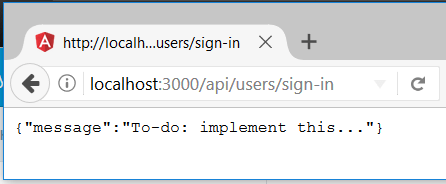
Now if we start it up with yarn start-server and visit (i.e. send a GET request to) http://localhost:3000/api/users/sign-in then we can render a route that’s not part of the Angular application:
Connect the client
Now that we have a route on the server (other than our default route which serves the Angular application), we may as well hook in the client side. It won’t be very exciting right now, but at least it gives us a pretty good idea what’s going on. Back in the ol’ user.service we’ll rejigger things a bit and start talking to the server.
// user.service.ts-import { Http } from '@angular/http';+import { Http, Headers, RequestOptions } from '@angular/http';
import { Injectable } from '@angular/core';
+import { Observable } from 'rxjs/Rx';+import 'rxjs/add/operator/map';+import 'rxjs/add/operator/catch';
...
export class UserService {
+ private HEADERS = new Headers({ 'Content-Type': 'application/json' });
...
signIn(email: string, password: string) {
- // This would be where we call out to the server to authenticate- // We'll use 'token' as a placeholder for now- localStorage.setItem(this.authToken, 'token');- this.signedIn = true;+ this.http.post('/api/users/sign-in', { username: email, password: password }, { headers: this.HEADERS })+ .map(response => response.json())+ .subscribe(+ next => this._signUserIn(next),+ error => console.error(error),+ );
}
create(username: string, email: string, password: string) {
- // Obviously this is not what this function will ultimately do- this.signIn(email, password);+ this.http.post('/api/users/sign-up', { username: username, email: email, password: password }, { headers: this.HEADERS })+ .map(response => response.json())+ .subscribe(+ next => this.signIn(email, password),+ error => console.error(error),+ );
}
signOut() {
- localStorage.removeItem(this.authToken);- this.signedIn = false;+ this.http.post('/api/users/sign-out', {}, { headers: this.HEADERS })+ .map(response => response.json())+ .subscribe(+ next => this._signUserOut(next),+ error => console.error(error),+ );
}
isSignedIn() {
return this.signedIn;
}
++ _signUserIn(response) {+ localStorage.setItem(this.authToken, 'token');+ this.signedIn = true;+ }++ _signUserOut(resposne) {+ localStorage.removeItem(this.authToken);+ this.signedIn = false;+ }
}
Now if you build the application, run the server, and try signing in and out, you should still be able to do everything. The only difference is now the client is talking to the server before signing you in. Should be obvious, but this isn’t doing *any* authentication at all. Everyone who submits a form gets “signed in”. The client side UI should look the same, but now if you watch your server logs, you should be able to see requests coming in. Remember to build and deploy the client to the server before running, and to also make sure that you start at the root of the site (http://localhost:3000/) so you’re not reusing an old Angular client side.
λ yarn start-server
yarn start-server v0.21.0-20170203.1747
$ cd min-auth-server && yarn && nodemon
yarn install v0.21.0-20170203.1747
[1/4] Resolving packages...
success Already up-to-date.
Done in 0.34s.
[nodemon] 1.11.0
[nodemon] to restart at any time, enter `rs`
[nodemon] watching: *.*
[nodemon] starting `node ./bin/www`
PostgreSQL 9.6.1 on x86_64-pc-linux-gnu, compiled by gcc (Alpine 6.2.1) 6.2.1 20160822, 64-bit
// Server has started by this point// Visit the root page
GET / 200 18.613 ms - 721
GET /styles.d41d8cd98f00b204e980.bundle.css 200 7.858 ms - -
GET /inline.1f47894ebb65f78c7be0.bundle.js 200 6.067 ms - 1460
GET /polyfills.807187ab19f977ed98f4.bundle.js 200 6.560 ms - 83835
GET /main.f6dff3649a5430d68d05.bundle.js 200 7.930 ms - 77077
GET /vendor.fa7f6c980c531ee6e4ce.bundle.js 200 7.399 ms - 465628
// Angular app has been delivered// Try signing in
POST /api/users/sign-in 200 35.469 ms - 38
// ...and signing out
POST /api/users/sign-out 200 12.310 ms - 38
// ...and signing up
POST /api/users/sign-up 200 5.199 ms - 38
POST /api/users/sign-in 200 0.911 ms - 38
// ...and signing out again
POST /api/users/sign-out 200 1.972 ms - 38
Now we’ve got the first pieces of the client talking to the server. Best of all, we didn’t break the client!